Command-Line Arguments
This document describes the hidden command-line arguments supported by FX Viewer. These features generally fall outside the program’s normal purpose and are intended for testing or debugging. In most cases, run the program without any arguments.
How to Apply Arguments
You can apply arguments to the program in the following ways:
-
Using the Program Shortcut Properties
-
Using CMD/PowerShell
-
Using the Run Dialog
You can also apply multiple arguments at once. When entering multiple arguments, separate them with spaces.
Using the Program Shortcut Properties
-
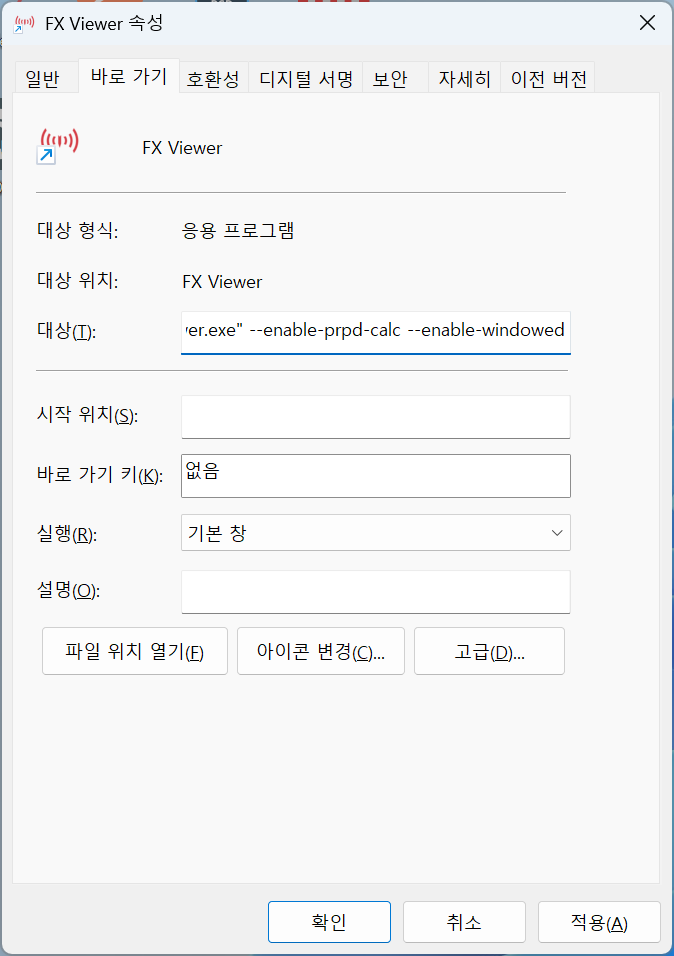
Right-click the FX Viewer shortcut icon on your desktop (or another location) and open the ‘Properties’ window.
-
In the Shortcut tab, append the arguments to use at the far right end of the ‘Target’ field.
Using PowerShell
Open a PowerShell window using Win+X, I or any other method, then adjust the command below with the arguments you want and run it. In PowerShell, each argument must be wrapped in quotation marks (”) to separate it.
Start-Process "$env:APPDATA\FX Viewer\FX Viewer.exe" -ArgumentList "--enable-prpd-calc", "--enable-windowed"Using Command Prompt (CMD)
Open a Command Prompt window, then adjust the command below with the arguments you want and run it.
start "" "%APPDATA%\FX Viewer\FX Viewer.exe" --enable-prpd-calc --enable-windowedUsing the Run Dialog
Press Win+R to open the Run dialog, then adjust the command below with the arguments you want and run it.
cmd /c start "" "%appdata%\FX Viewer\FX Viewer.exe" --enable-prpd-calc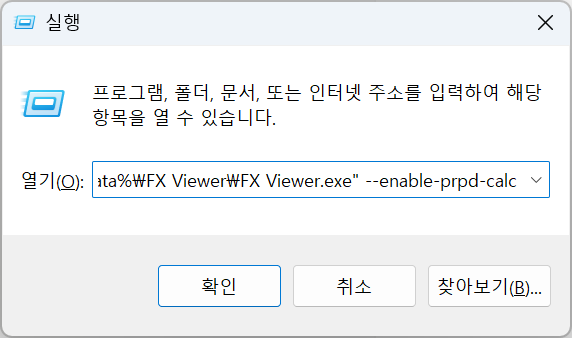
Argument List
-
--enable-prpd-calc -
--enable-ai-console -
--enable-windowed -
--enable-prpd-more-executor
Argument Details
enable-prpd-calc
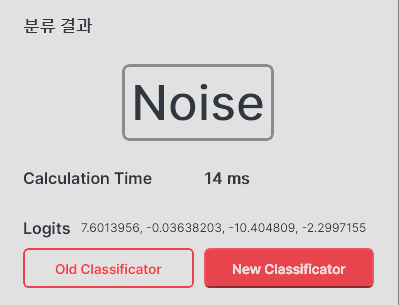
Displays the detailed computation results of the PRPD classifier, along with the computation time and a button to select the classifier version.
For the Old Classificator the result is Probability; for the New Classificator the result is Logits.
enable-ai-console
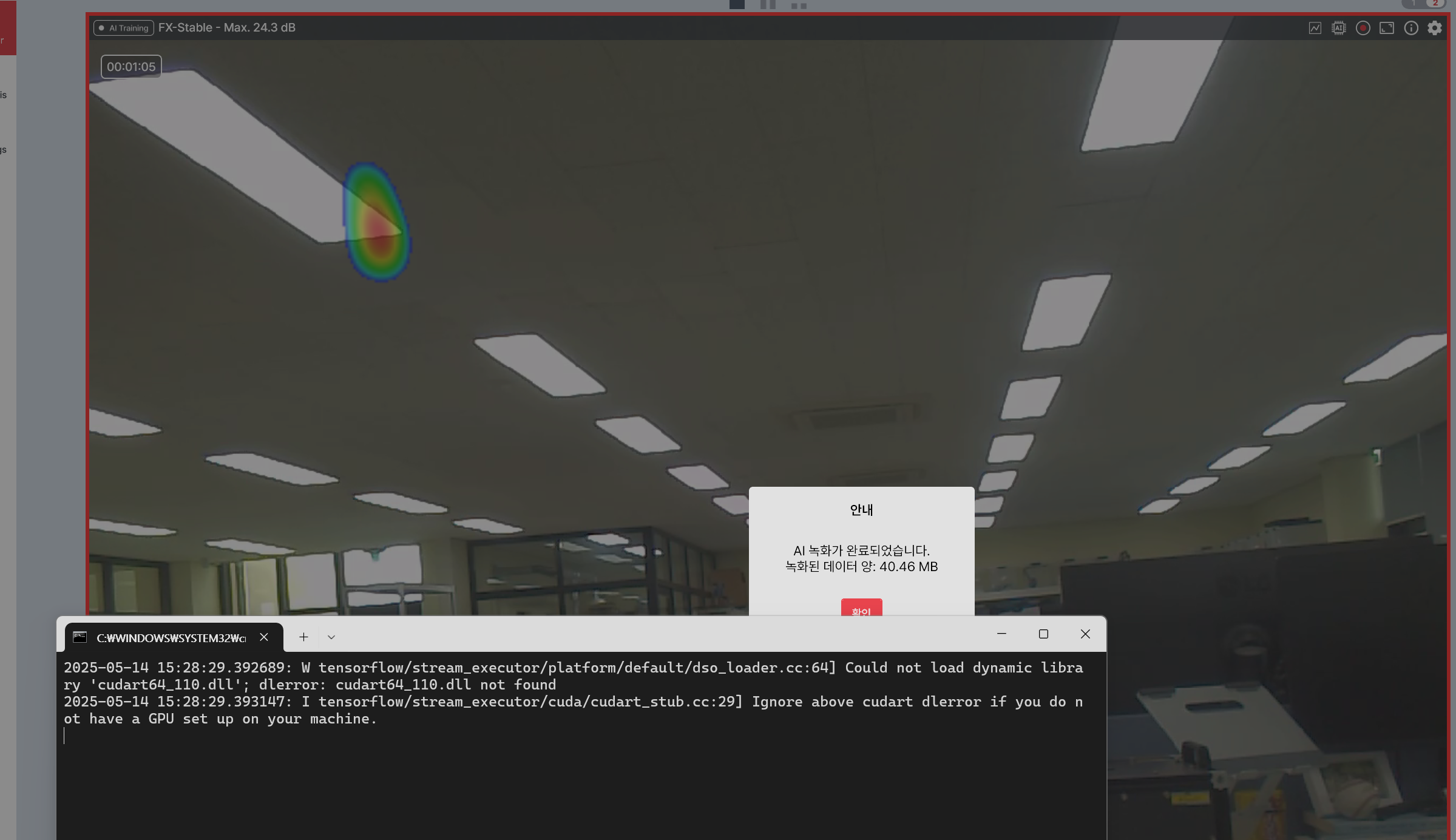
Shows a console that displays the AI training progress when you start AI training from the per-camera detailed settings. The console is also shown when a model is being applied in real time, not only during training.
enable-windowed
Allows FX Viewer to run in windowed mode.
enable-prpd-more-executor
Allows the PRPD classifier to use compute devices other than the CPU.
ROCm, MIGraphX, and OpenVINO each require the matching driver, runtime, and SDK to be installed. They are not provided with the program installation; when the matching driver is present and the usage condition checks pass, the Executors listed in the table below become available.
| Executor | Usage Example | Notes |
|---|---|---|
| CUDA | NVIDIA GPU ( RTX 20xx or later ) | |
| ROCm | AMD GPU ( RX 5700 XT or later ) | |
| MIGraphX | Environments with AMD ROCm support | Experimental |
| OpenVINO | Intel 6th-generation CPU or later | Experimental |
| CPU | Any x64-based CPU | Enabled by default |
-
With CUDA, the program requires more memory at runtime, and real-time PRPD classification may cause computation backlogs, memory overload, or memory leaks.
-
ROCm and MIGraphX have not been tested because no supported graphics card was available.
-
With OpenVINO, the CPU may overheat due to AVX operations.
💡 Note: The CUDA feature was tested with CUDA 12.9 ToolKit and CUDNN 9.10. The background noise removal feature requires CUDA 11.8 and CUDNN 8.7.